Show the close arrow in Now Playing
Shows the down arrow at the top of Now Playing.
WhereSettings›Appearance & Language›Theme & Accent›Show the close arrow in Now Playing
iPhoneiPadNot on MacNot on Apple TVNot on Apple WatchDefault: On
Where it is
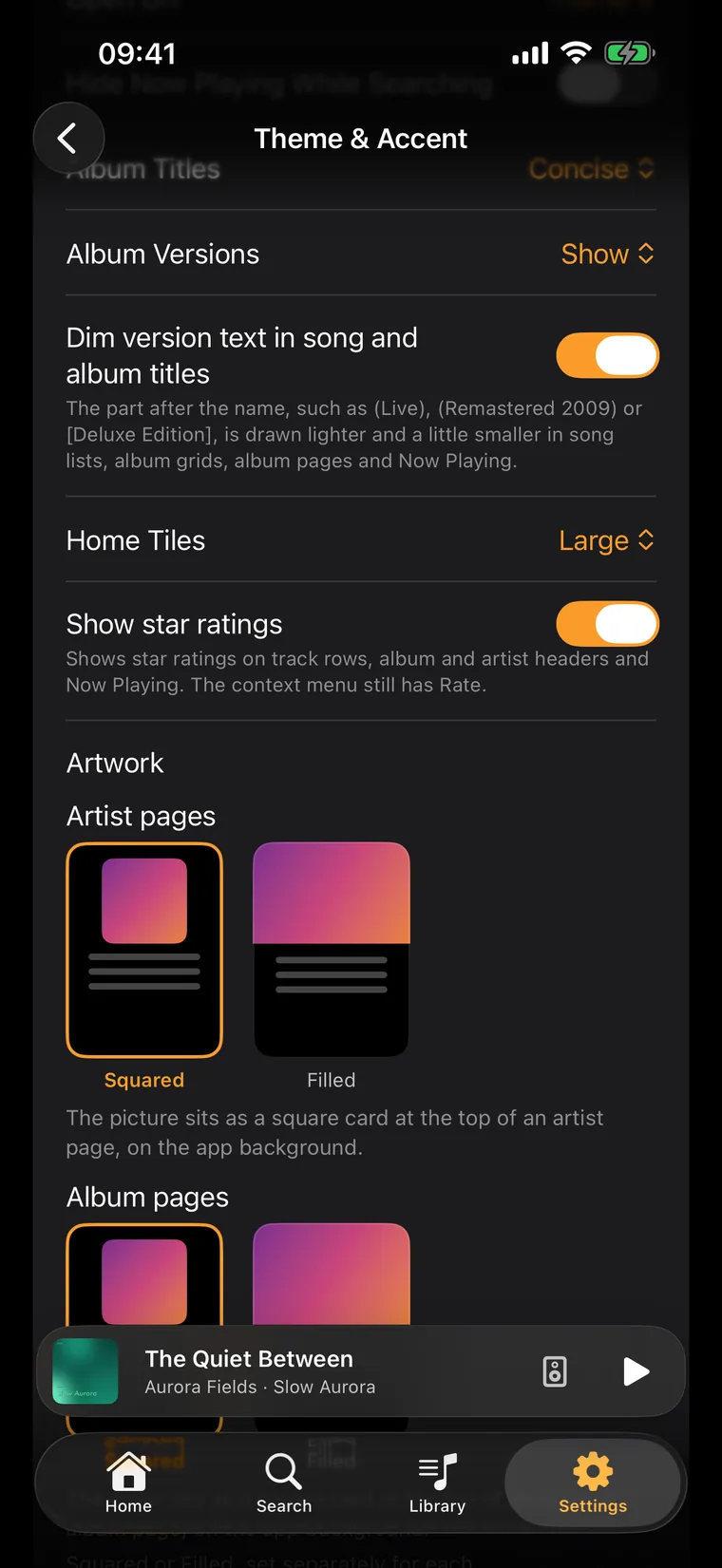
Screenshot from iPhone.
What it does
Swipe down closes Now Playing with or without the arrow. VoiceOver always shows it.
How to change it
- Open Settings.
- Tap Appearance & Language.
- Tap Theme & Accent.
- Find Show the close arrow in Now Playing and change it.
Checked against the app on 21 November 2026.