Direct Playback
Plays the file exactly as it is stored on your server, with nothing from NaviBeat in between.
WhereSettings›Playback & Audio›Quality & Streaming›Direct Playback
iPhoneiPadMacApple TVNot on Apple WatchDefault: Off
Where it is
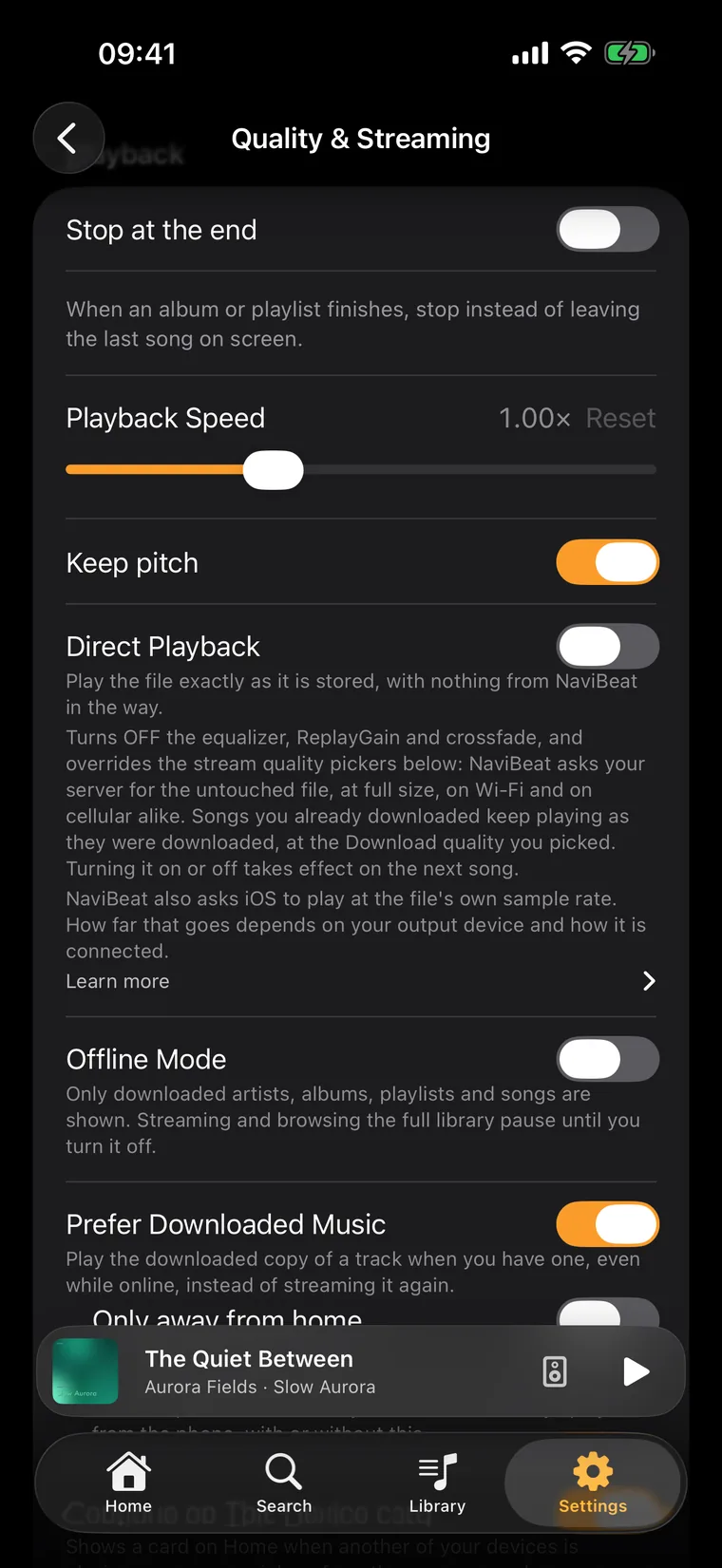
The highlighted row is Direct Playback.
Screenshot from iPhone.
What it does
With Direct Playback on, NaviBeat asks your server for the untouched file at full size, on Wi-Fi and on cellular alike. The equalizer, ReplayGain and crossfade are turned off, and the stream quality pickers no longer apply.
NaviBeat also asks iOS to play at the file's own sample rate and channel count. How far that goes depends on your output: Apple documents that playback above 48 kHz needs an external DAC, which the built-in speaker and Bluetooth do not provide.
How to change it
- Open Settings.
- Tap Playback & Audio.
- Tap Quality & Streaming.
- Find Direct Playback and change it.
Good to know
- Songs you already downloaded keep playing as they were downloaded, at your Download quality.
- A change takes effect on the next song.
- Direct Playback works with the System (AVPlayer) engine. The AudioStreaming (beta) engine always converts to 44.1 kHz stereo, so it cannot play a file untouched.
Checked against the app on 21 November 2026.