App Language
Picks the language NaviBeat is shown in, separate from your device language.
WhereSettings›Appearance & Language›Language›App Language
iPhoneiPadMacApple TVNot on Apple WatchDefault: System
Where it is
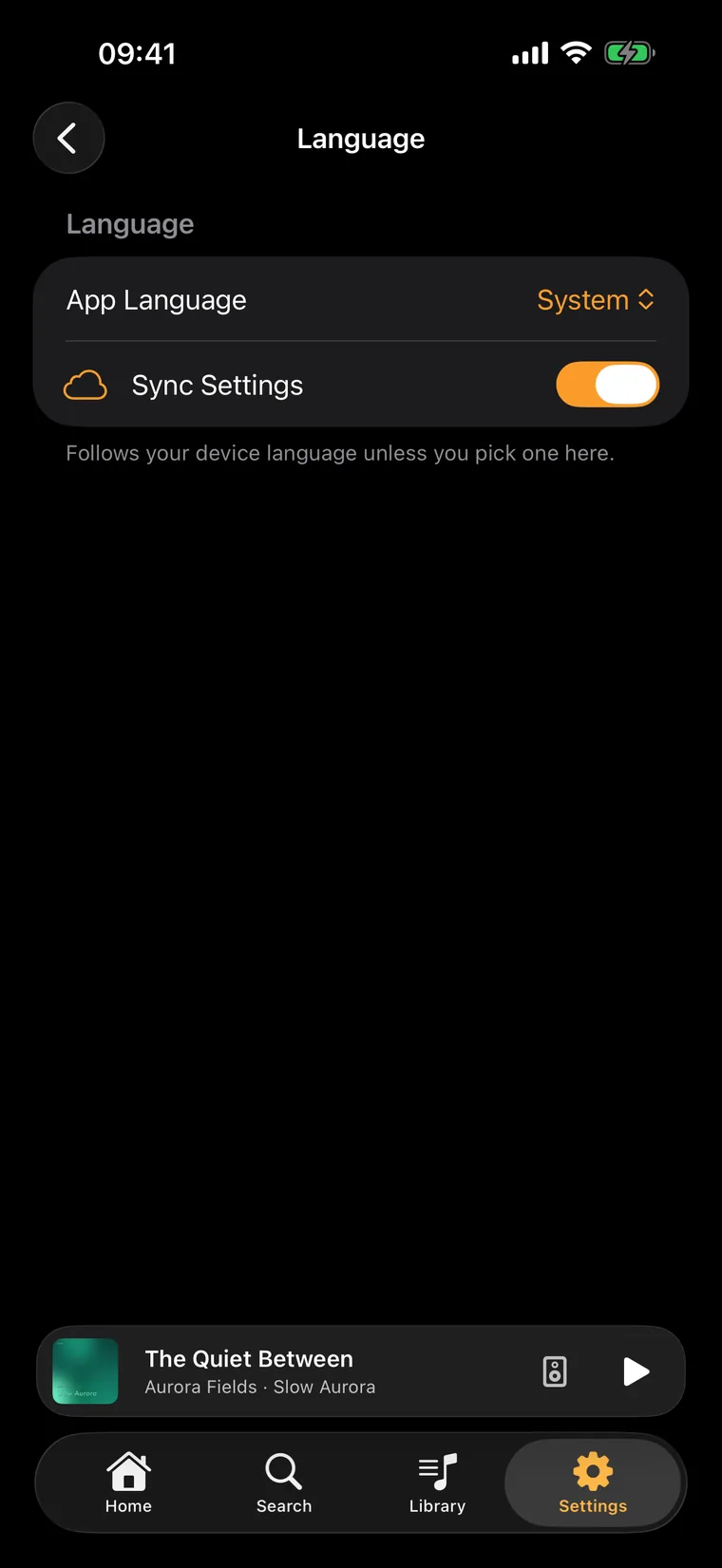
The highlighted row is App Language.
Screenshot from iPhone.
What it does
NaviBeat follows your device language unless you pick one here. System goes back to following the device.
How to change it
- Open Settings.
- Tap Appearance & Language.
- Tap Language.
- Find App Language and change it.
Good to know
- Quit and reopen NaviBeat to apply the new language.
Checked against the app on 21 November 2026.