NaviBeat Linux Linux Open beta

The Navidrome client for Linux.

A native desktop music player for Navidrome, Airsonic, Gonic, or any OpenSubsonic server. Time-synced lyrics, a pin-on-top Mini Player, downloads, a 10-band equalizer, and NaviSyncRock sync to a Rockbox player. No Electron, no web view, just a real Linux app. Run it with --tui and the whole thing works in a terminal over SSH, so a headless server or a Raspberry Pi can hold your library too. It is free, and it is in beta.

One step after the download: mark it executable, then run it.
chmod +x NaviBeat-linux-x86_64.AppImage && ./NaviBeat-linux-x86_64.AppImage
Prefer the mouse? Right-click the file, Properties, Permissions, tick Allow executing file as program, then double-click it.

Platform
Linux x86_64 and ARM64 (Raspberry Pi, Asahi), nothing to install
Price
Free · open beta
Server
Navidrome v0.50+, OpenSubsonic, Airsonic-Advanced, Gonic
Distribution
AppImage on GitHub Releases
Version
0.9.60 beta ·
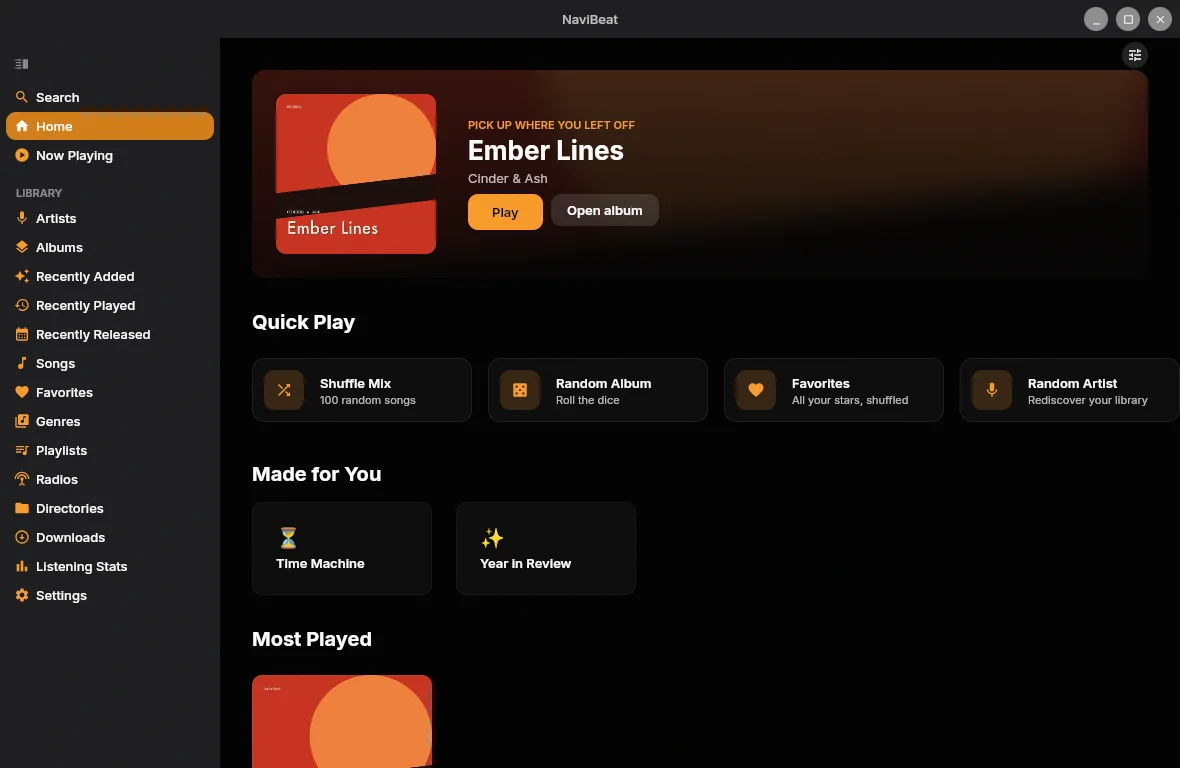
NaviBeat Home on Linux: native sidebar with Home, Artists, Albums, Playlists, Radio, Directories and a Featured Album hero section.
  • Free

    Open beta · on GitHub

  • 0 SDKs

    No analytics. No trackers.

  • 1 file

    Self-contained AppImage

  • Rockbox sync

    NaviSyncRock, free on Linux

The short answer

A real Linux app for the server you already run.

01 / Actually native

A desktop app, not a web page.

Written in Kotlin with Compose Multiplatform. Real window management that remembers its size and position, a sidebar, keyboard control, directory browsing, and MPRIS so your keyboard's play and skip keys just work. The Mini Player stays on top of whatever you are doing.

02 / Rockbox iPod sync

NaviSyncRock: your Navidrome, on a real iPod.

Plug in a Rockbox iPod or player and send it a song, album, artist, or playlist: your own server does the transcoding, album art is re-encoded so old hardware renders it, playlists are written correctly, and plays sync back to Navidrome. On the Mac this is a paid add-on. On Linux it is free. See how it works.

03 / Audio quality

A desktop-grade audio path.

A 10-band equalizer (32 Hz to 16 kHz), ReplayGain so a shuffle across a mixed library does not swing in loudness, and crossfade. A quality badge shows FLAC or the exact bitrate. Send the original file untouched, or ask the server to transcode to a lighter tier.

04 / Homelab-grade access

It reaches the server you actually built.

Custom HTTP headers for Cloudflare Access and Authelia, mTLS client certificates, and access over Tailscale, with no third-party relay in between. Many clients only speak to a plain, directly exposed server. NaviBeat is built for the one behind your proxy.

Every screen

A native desktop that looks and behaves like one.

Sidebar navigation, keyboard control, a Mini Player, downloads that keep playing when you go offline. The same design as the Apple builds, drawn natively on Linux. Screenshots use a demo library.

NaviBeat Home on Linux with sidebar and Featured Album hero

01 / Home

Sidebar, Featured Album, Quick Play.

The sidebar gives you Home, Artists, Albums, Playlists, Radio and Directories. Home opens on a Featured Album hero with Quick Play, Made for You, and Most Played below. Connect Last.fm or ListenBrainz and Home adds personalized shelves too.

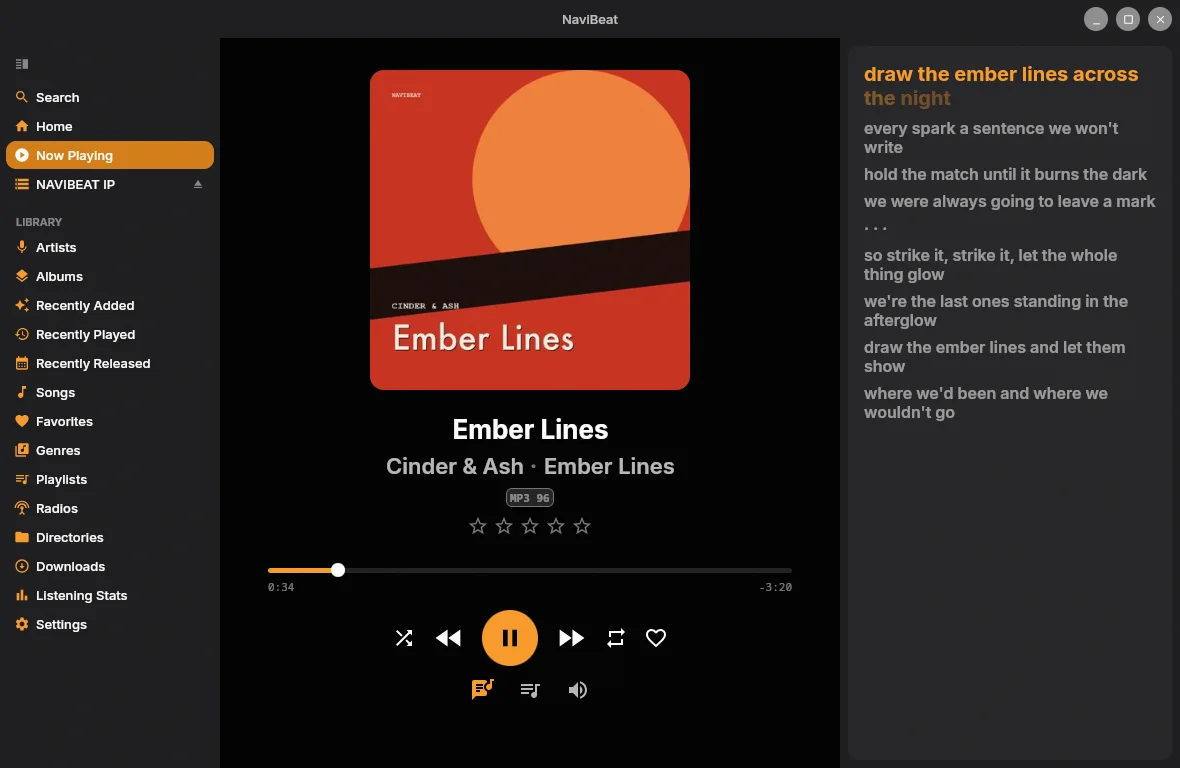
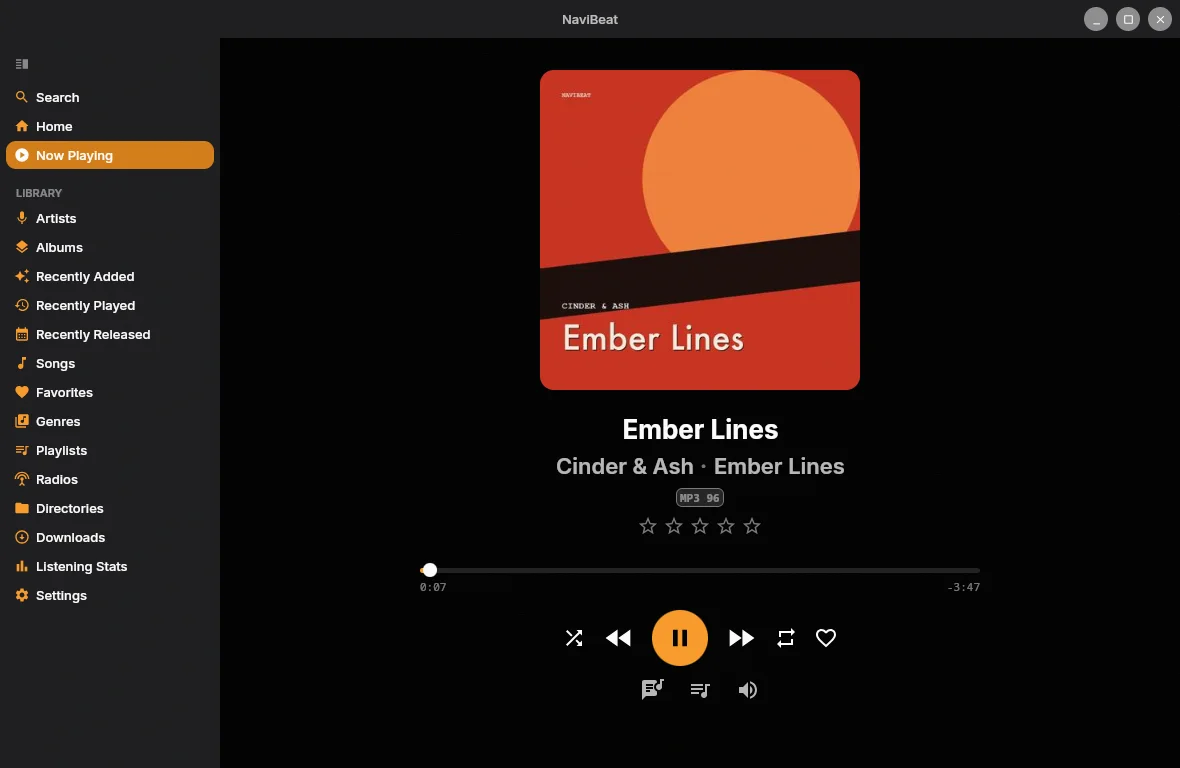
NaviBeat on Linux showing the Now Playing screen with a time-synced lyrics panel

02 / Now Playing & Lyrics

Time-synced lyrics, right beside the art.

Open the lyrics panel next to Now Playing and each line lights up as it is sung. An optional word-by-word karaoke mode uses your server's timing when the track has it. Album art, a quality badge, ratings and full transport controls sit alongside.

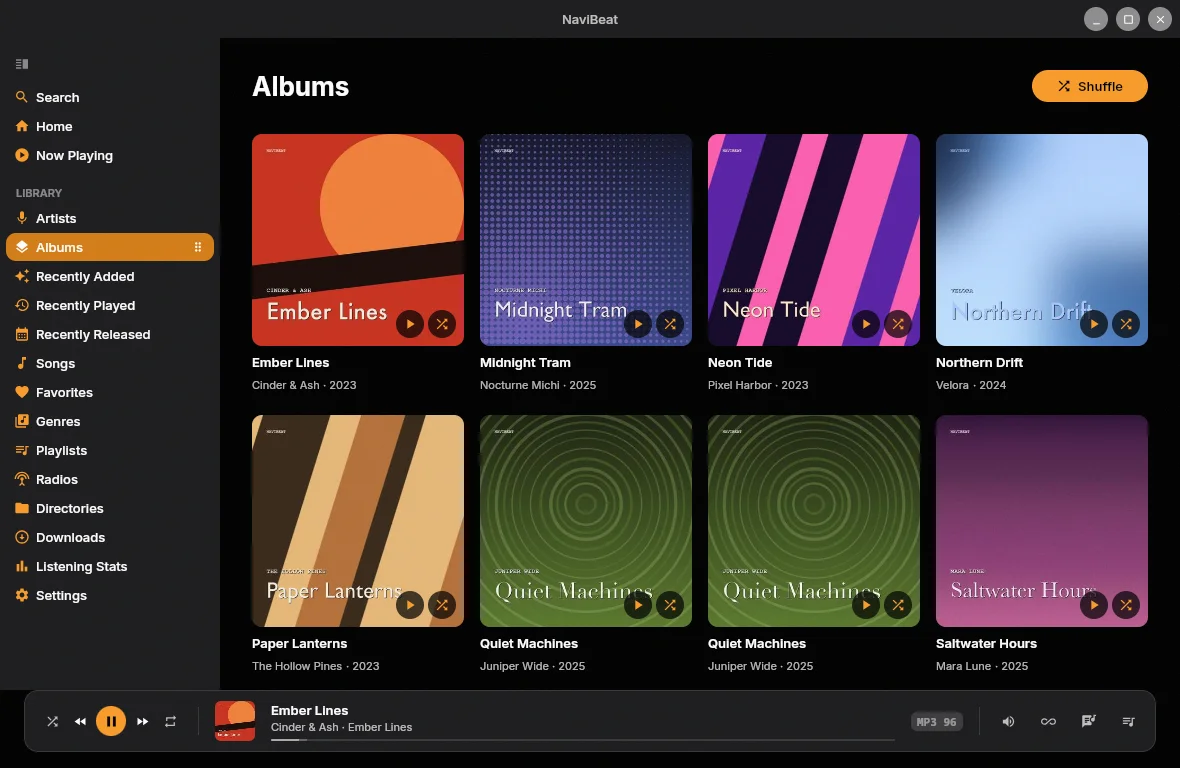
NaviBeat Albums grid on Linux with cover art, artist and year, and a now-playing bar

03 / Albums

Your whole library at a glance.

An Albums grid with cover art, artist name and release year. Sort by recently added, alphabetically, by artist, or by year. Click any album for the full track list, and keep control from the persistent now-playing bar.

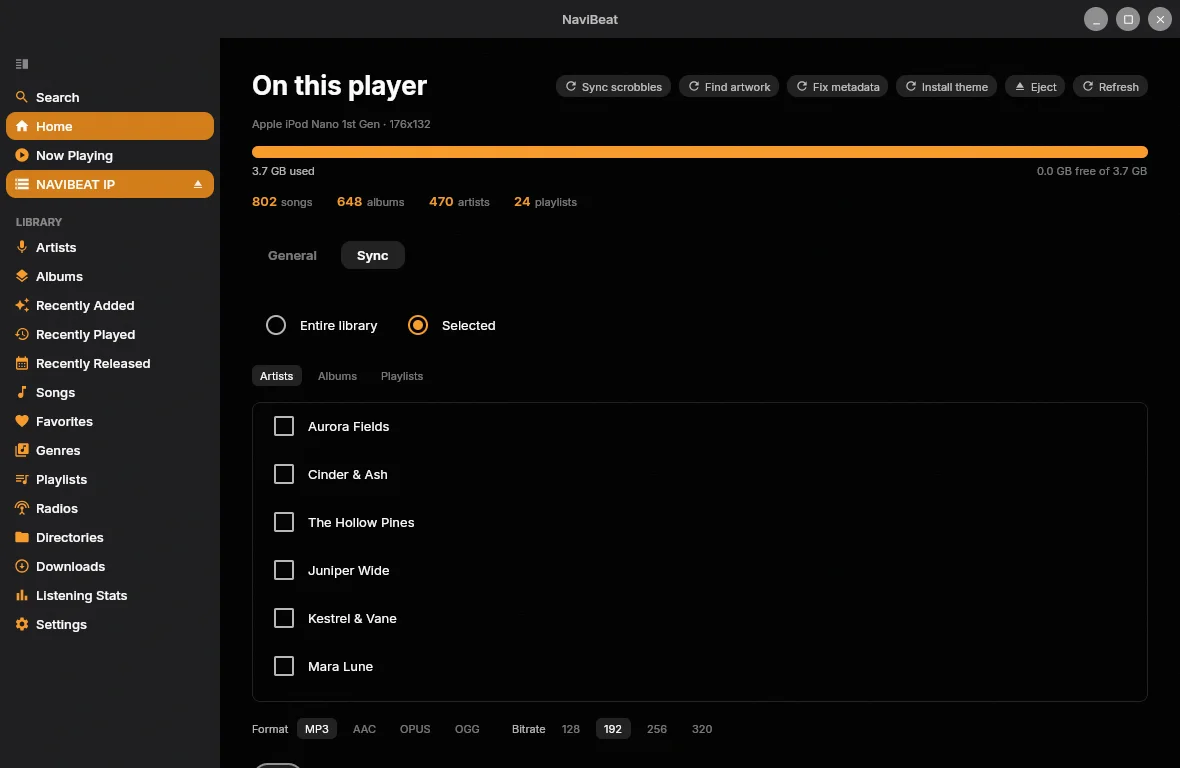
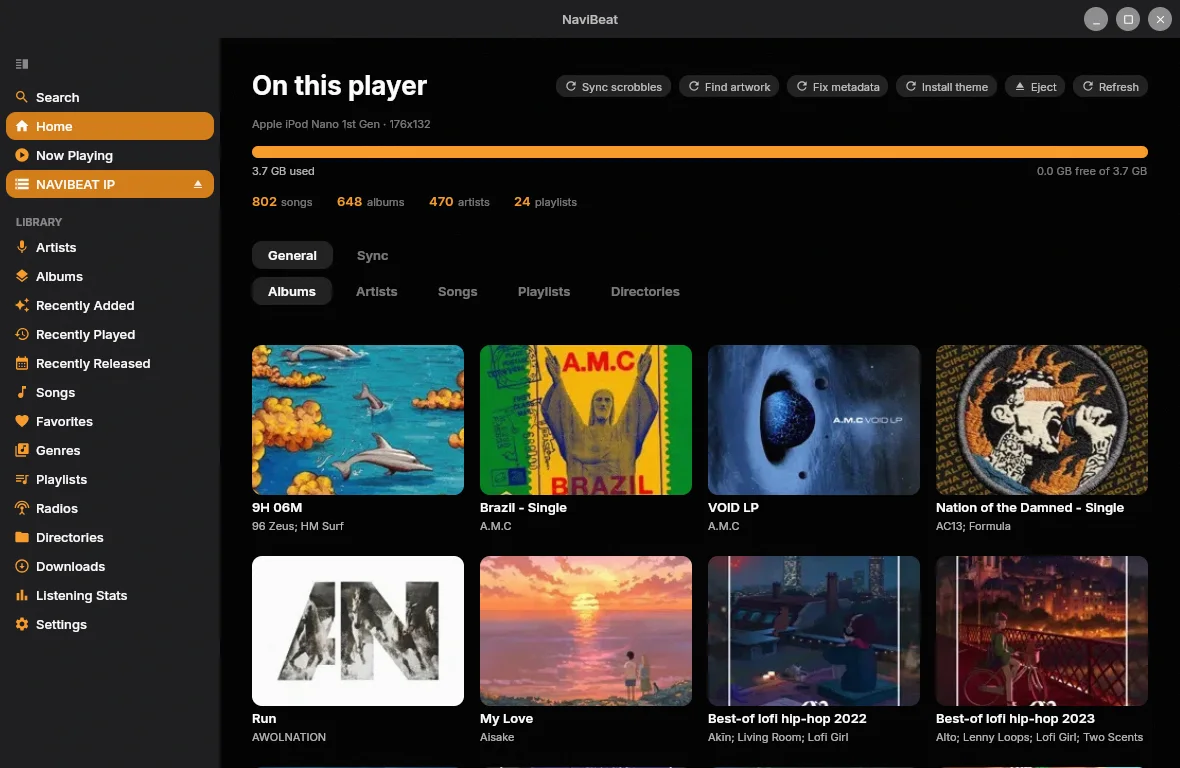
NaviBeat NaviSyncRock sync screen on Linux: choose entire library or selected artists, and a transcode format and bitrate

04 / NaviSyncRock

Sync to a Rockbox player, free on Linux.

Pick your whole library or just some artists, albums and playlists, choose a format and bitrate, and NaviBeat transcodes on your server and copies it to a connected Rockbox iPod or player. Set it up from Settings, or just plug the player in. It is a paid add-on on the Mac, and free here.

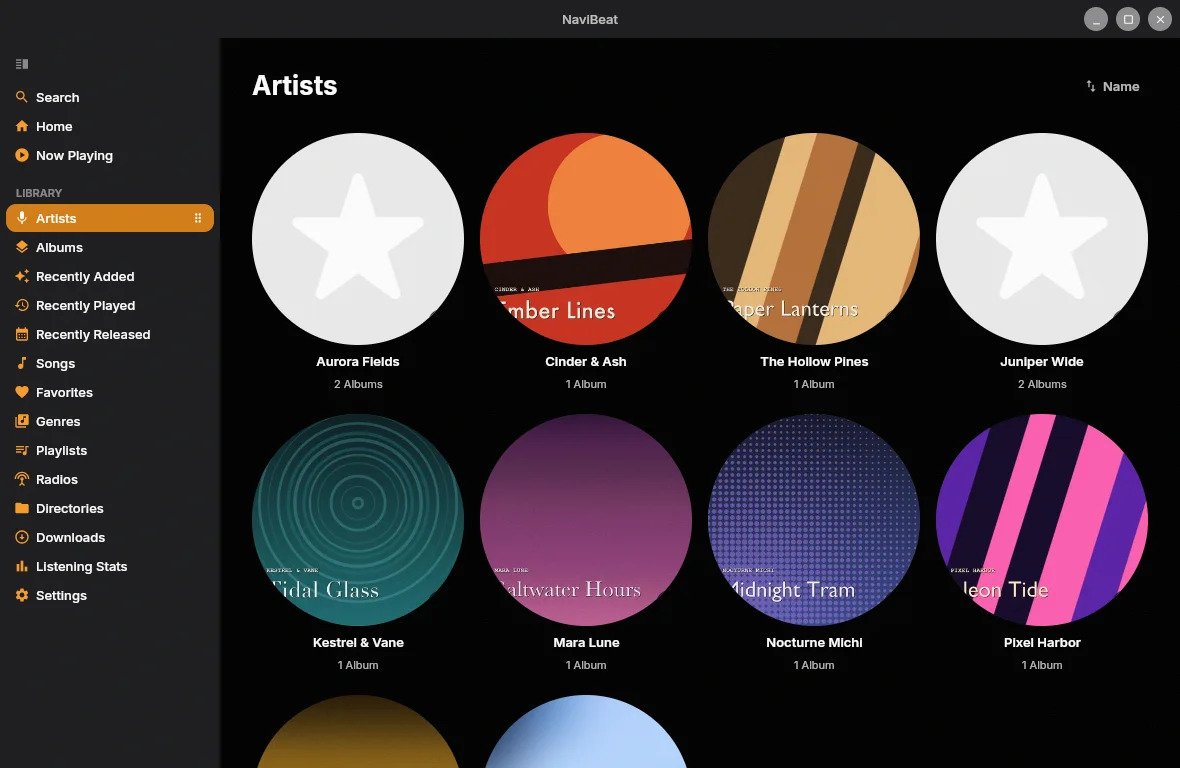
NaviBeat Artists view on Linux with circular artist images

05 / Artists

Every artist, with their art.

Browse artists as circular tiles with their images and album counts. Open one for the full discography. Connect Last.fm for richer artist pages and Listening Stats.

No display required

The same app, in a terminal.

Run it with --tui and NaviBeat draws itself in the terminal instead of a window. Your whole library, the queue, the lyrics, cover art, downloads, favourites, search, gapless playback, all of it over SSH on a headless server or a Raspberry Pi. On a machine with no display attached it starts that way by itself, so a music player never dies on a missing X server.

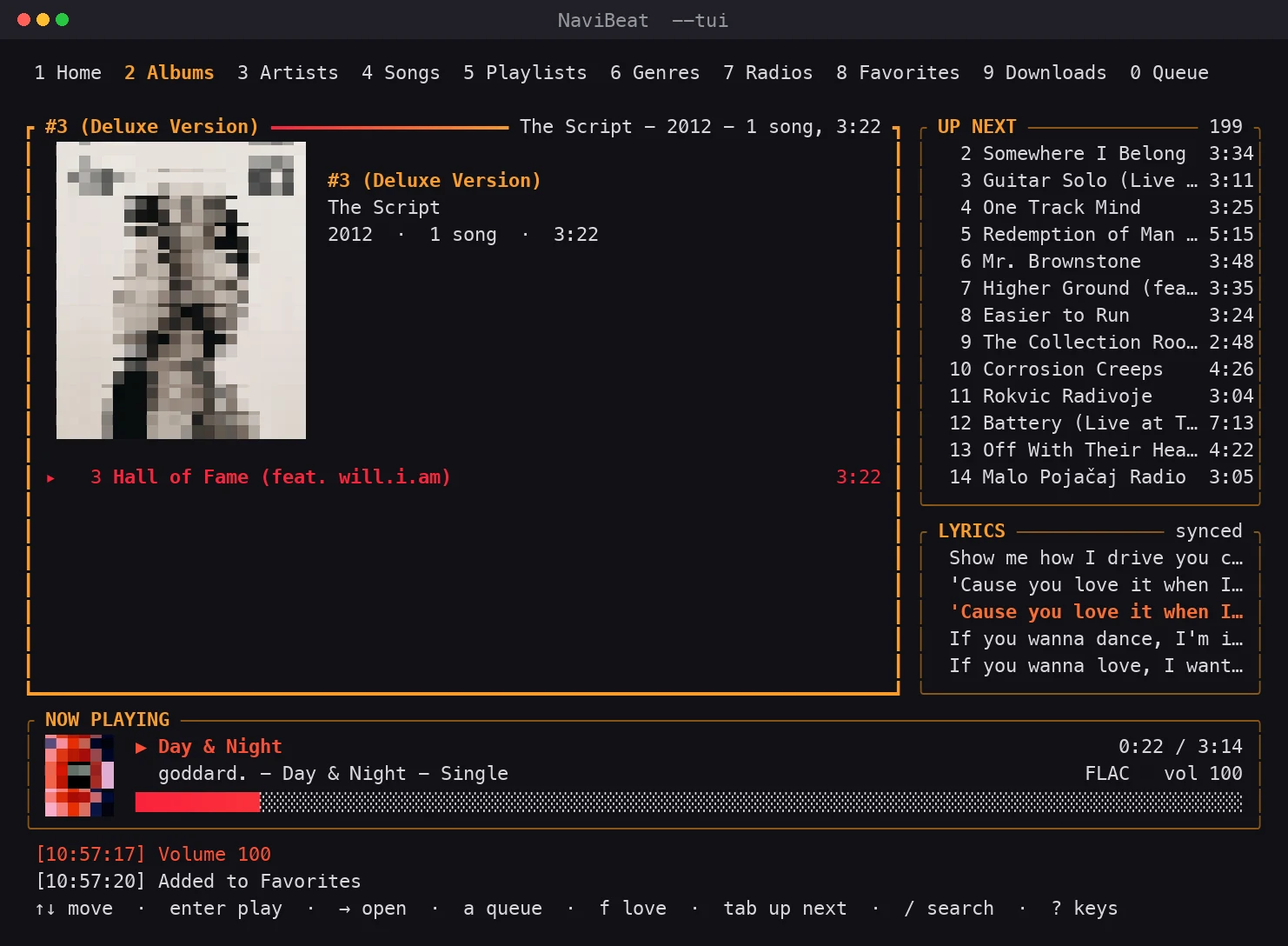
NaviBeat terminal client on Linux: an album list on the left in its own framed section, Up Next and time-synced lyrics on the right, and a framed now playing bar with cover art and a gradient progress bar

01 / Terminal client

Your library, what is next, and the words. At once.

Every section sits in its own frame, and the one your keys are going to is drawn in NaviBeat's own gradient, so you can see where you are from across the room. Tab moves between the library, Up Next and the lyrics. In the queue, enter jumps to a track; in the lyrics, enter seeks to that line. Above the transport, two lines with the time on them say what you just did, so an action taken while you were looking somewhere else leaves a trace. Ten screens still sit on the number keys, and it is the same engine as the windowed app underneath: the same library code, the same player, the same downloads, the same MPRIS integration, so your desktop's media keys still work.

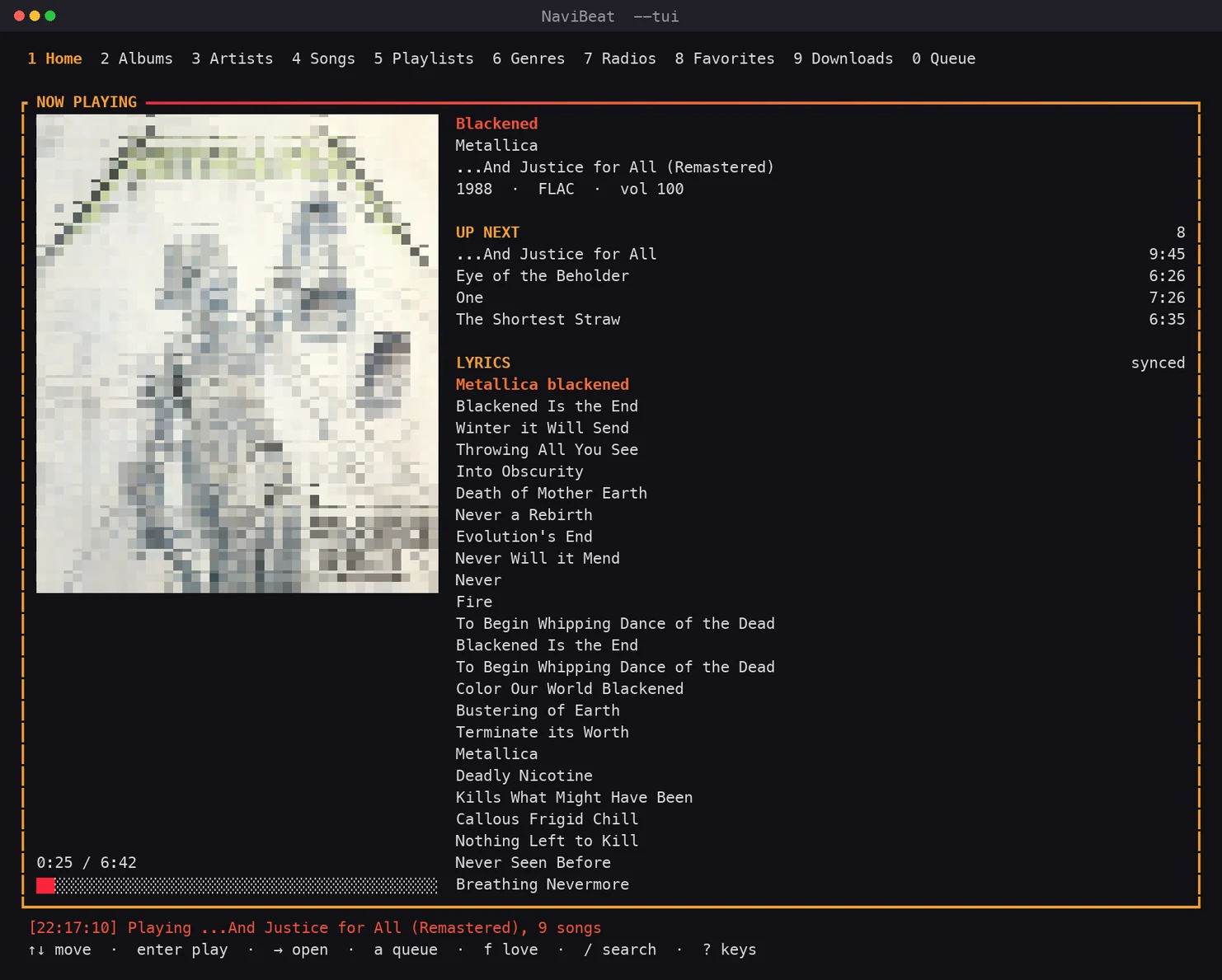
NaviBeat terminal client Now Playing: a large album cover drawn in terminal cells on the left, the track, artist, album and year beside it, then Up Next and time-synced lyrics

02 / Now Playing

The record, at the size a record deserves.

A whole screen for what is on. The cover takes as much of the frame as it can hold, drawn in real colour out of terminal cells, with the title, the artist, the album, the year and the format beside it, then what is coming next and the words underneath, moving with the song. It is the first thing on Home, so 1 then enter gets you there from anywhere. H and L widen and narrow the side column on the list screens, because a library of short album titles wants a wider queue and a library of box sets wants the opposite.

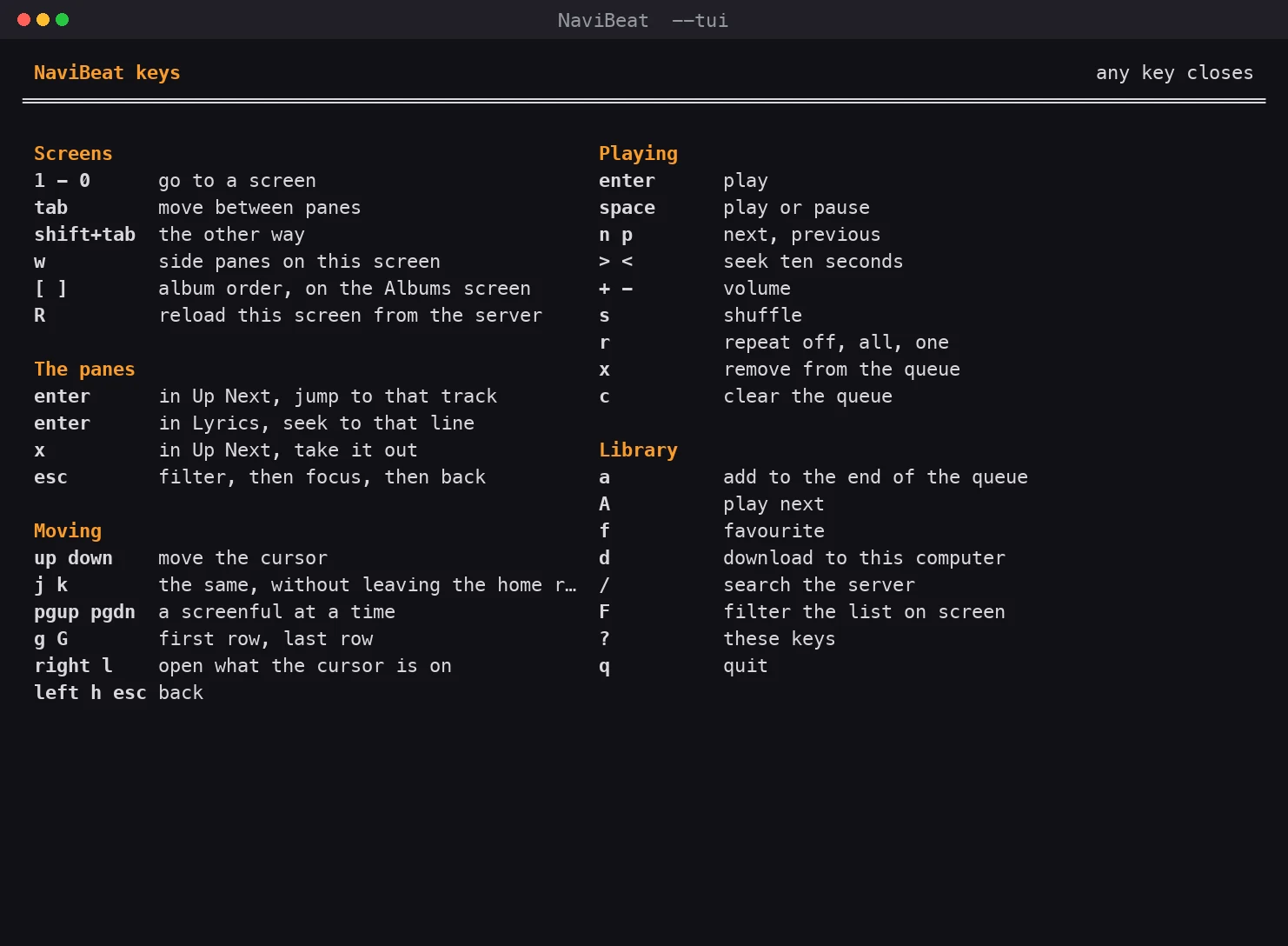
NaviBeat terminal client key map: screens on the number keys, j and k to move, enter to play, slash to search, question mark for help

03 / Keys

The keys you already know.

The bindings are cmus and mpd vocabulary: j and k to move, enter to play, space to pause, n and p for next and previous, / to search the server, a to queue, d to download, f to favourite, w for the side panes. The arrow keys work alongside the letters, so nobody has to learn anything to get started, the line along the bottom always shows the keys that work where you are, and ? puts the whole map on screen.

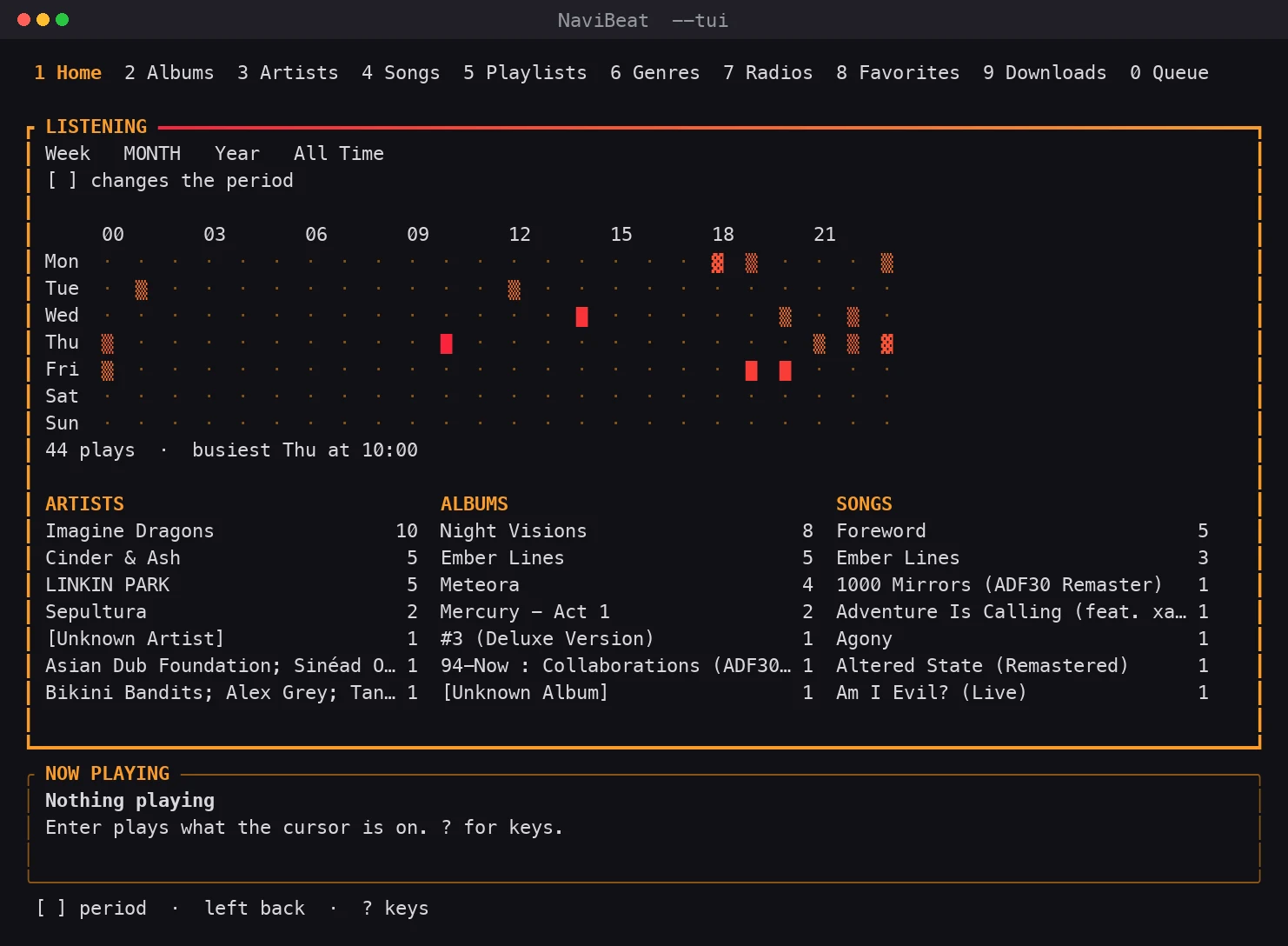
NaviBeat terminal client: a listening heatmap of seven days by twenty four hours, with top artists, albums and songs listed underneath

04 / Listening

When you actually listen.

Seven days by twenty four hours, built from the play log NaviBeat keeps on your own machine and nowhere else. Your busiest hour, and your top artists, albums and songs beneath it. [ and ] move between week, month, year and all time. A grid of cells is the one thing a terminal draws better than a window, and this one fills as you listen.

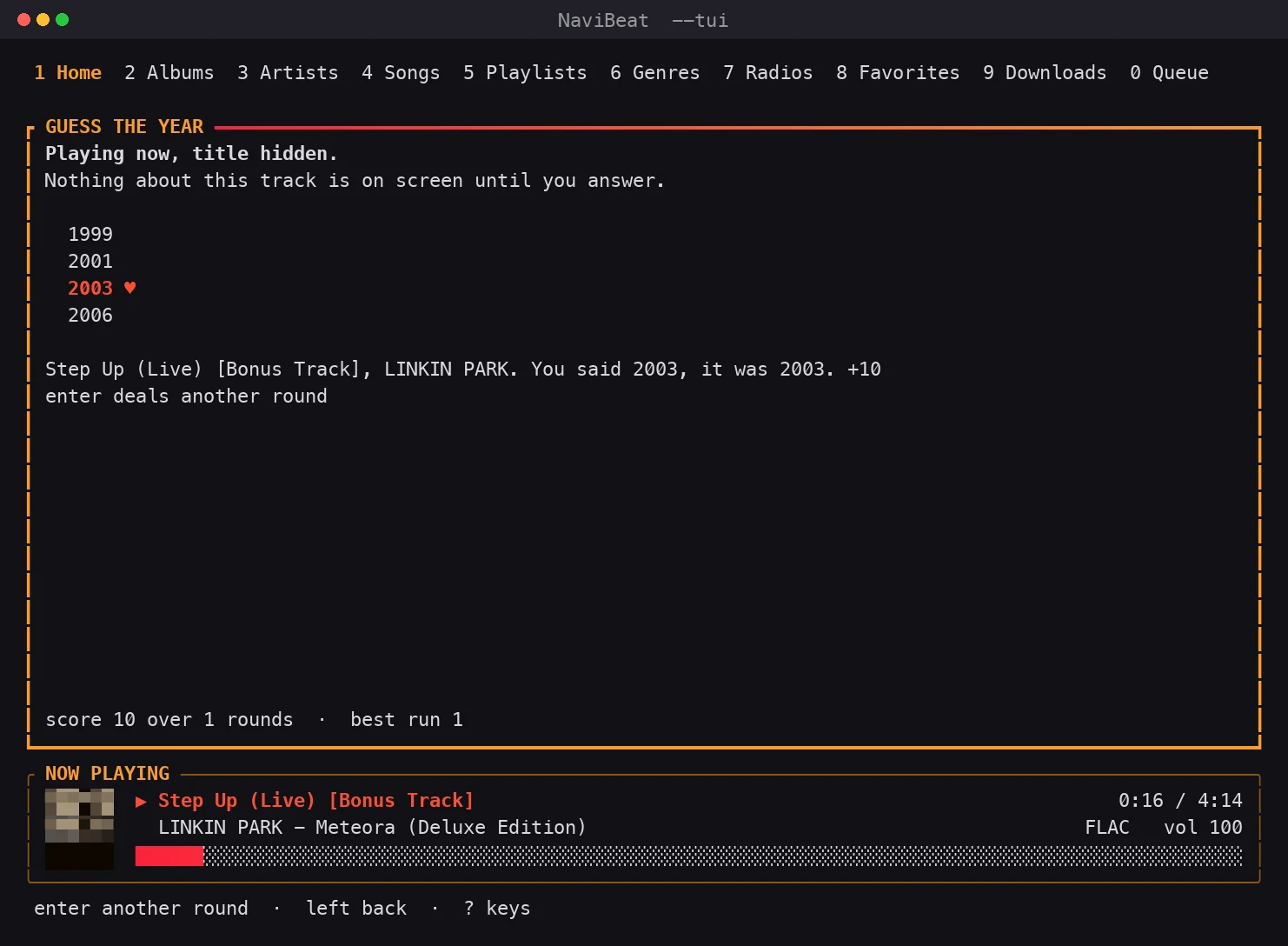
NaviBeat terminal client: Guess the Year, a hidden track playing with four candidate years to choose from and a running score

05 / Guess the Year

A game made of your own records.

A track from your library plays with its name hidden, and you pick from four years. Ten points for the exact year, eight if you are within two, and the track keeps playing after you answer, because it is a way to listen rather than a quiz. It sits on Home, next to the heatmap.

All screenshots

Every screen in one place.

NaviBeat Home on Linux

Home

NaviBeat Now Playing on Linux

Now Playing

NaviBeat time-synced lyrics on Linux

Lyrics

NaviBeat Albums grid on Linux

Albums

NaviBeat Artists on Linux

Artists

NaviBeat NaviSyncRock device page on Linux

NaviSyncRock

NaviBeat NaviSyncRock sync options on Linux

Rockbox sync

NaviBeat terminal client on Linux, running with --tui

Terminal client

NaviBeat terminal client key map

Terminal keys

Get it running

Download, make it executable, run.

Three steps

  1. Download the AppImage for your machine:
    Intel or AMD (x86_64)  ·  ARM64 (Raspberry Pi, Asahi)
  2. Make it executable. A browser always saves the file without that flag.
    chmod +x NaviBeat-linux-*.AppImage
    No terminal? Right-click the file, Properties, Permissions, tick Allow executing file as program. GNOME Files, Dolphin, Thunar and Nemo all have it.
  3. Run it:
    ./NaviBeat-linux-*.AppImage

The AppImage carries its own Java runtime, so you do not need to install Java. Runs on 64-bit Intel and AMD, and on ARM64 like a Raspberry Pi or Asahi Linux.

An AppImage does not really install, it is a single file you run. The natural home for it is a ~/Applications folder. For a menu entry and icon, use AppImageLauncher.

What you need

  • Nothing to install. Java and VLC both travel inside the download.
    Already have VLC? The slim build is a smaller file that uses yours.
  • No desktop needed. Run it with --tui for a full terminal client, on a headless server or a Raspberry Pi over SSH. With no display attached it starts that way by itself.
  • FUSE to double-click the AppImage (sudo apt install libfuse2), or run it with --appimage-extract-and-run.
  • A Navidrome or OpenSubsonic server to connect to. NaviBeat is a client and comes with no music of its own.

Free, in beta

Free to download. Free to keep.

Free

Open beta on GitHub. The Apple builds are a one-time $5.99 Universal Purchase.

Download the AppImage

Then mark it executable and run it: chmod +x NaviBeat-linux-x86_64.AppImage, or right-click the file, Properties, Permissions, Allow executing file as program.

All releases on GitHub →

Questions

Frequently asked questions

How much does NaviBeat for Linux cost?

It is free. The Linux build is in open beta and free to download from GitHub. The Apple builds (Mac, iPhone, iPad, Apple TV, Apple Watch) are a one-time $5.99 Universal Purchase on the App Store.

Is NaviBeat for Linux stable?

It is in beta. It is built and tested on real hardware, but it is early and you may encounter bugs. Please report anything that breaks on the GitHub issues page so it can be fixed.

How do I install it?

Download the AppImage from GitHub, make it executable with chmod +x, and run it. It carries its own Java runtime and its own VLC, so there is nothing to install. If you already run VLC and want a smaller download, the slim build uses your system libVLC instead.

Can I run NaviBeat on a headless server with no desktop?

Yes. Run it with --tui and NaviBeat draws itself in the terminal instead of a window, so it works over SSH on a headless server or a Raspberry Pi. It is the same app underneath: the same library, the same queue, the same downloads, the same gapless playback, with cmus and mpd style keys. On a machine with no display attached it starts in terminal mode by itself. See the terminal client.

What music server does it need?

NaviBeat is a client, so it connects to your own server. It works with Navidrome v0.50 or later, or any OpenSubsonic-compatible server, including Airsonic-Advanced and Gonic. It does not host or stream any music of its own.