Jump Buttons
Adds skip-back and skip-forward buttons next to Play, for 10, 15 or 30 seconds. Useful for audiobooks and podcasts.
WhereSettings›Appearance & Language›Now Playing›Jump Buttons
What you see
 1
2
3
3
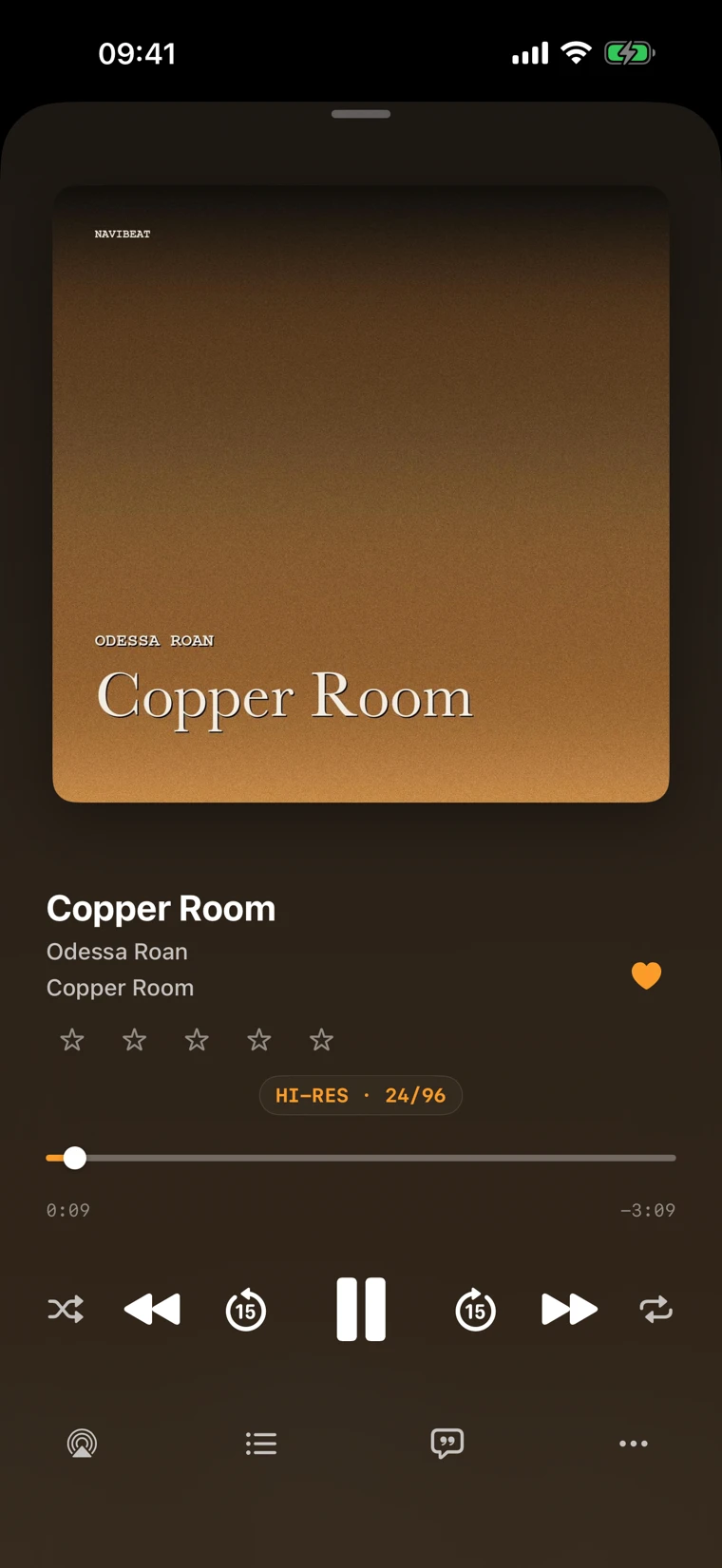
- Skip backJumps back by the time you picked. The number on the button shows it, here 15 seconds.
- Skip forwardJumps ahead by the same time.
- Previous and Next stayTurning jump buttons on does not take anything away inside the app. Both pairs are always there.
iPhone, Now Playing, Jump Buttons set to 15 seconds.
How to turn it on
- Open Settings and tap Appearance & Language.
- Tap Now Playing.
- Under Jump Buttons, pick 10 seconds, 15 seconds or 30 seconds.
The buttons show up everywhere NaviBeat draws its own player. Pick Off to remove them again.
Options
| Option | What it does | Default |
|---|---|---|
| Jump Buttons | Off, 10, 15 or 30 seconds. | Off |
| Use Them on the Lock Screen | Puts the jump buttons on the lock screen and in CarPlay. Appears once Jump Buttons is on. | Off |
| Your libraries | Limits the buttons to the libraries you tick. Appears only when your server has more than one library. | None ticked, so everywhere |
Lock screen and CarPlay
The lock screen and CarPlay have room for one pair of side buttons. With Use Them on the Lock Screen on, that pair becomes skip back and skip forward, and Next and Previous are gone from the lock screen and CarPlay. Inside the app nothing changes.
Only for audiobooks
Keep audiobooks in their own library on your server? Tick only that library under Jump Buttons. The buttons then appear while you browse that library and stay hidden in your music.
While you browse All Libraries with a library ticked, the buttons stay hidden, so they cannot follow you into music.
Checked against the app on 21 November 2026.