Bit depth and sample rate for Lossless
Adds the bit depth and sample rate to the badge for CD-quality lossless files too.
WhereSettings›Appearance & Language›Now Playing›Bit depth and sample rate for Lossless
iPhoneiPadMacNot on Apple TVNot on Apple WatchDefault: Off
Where it is
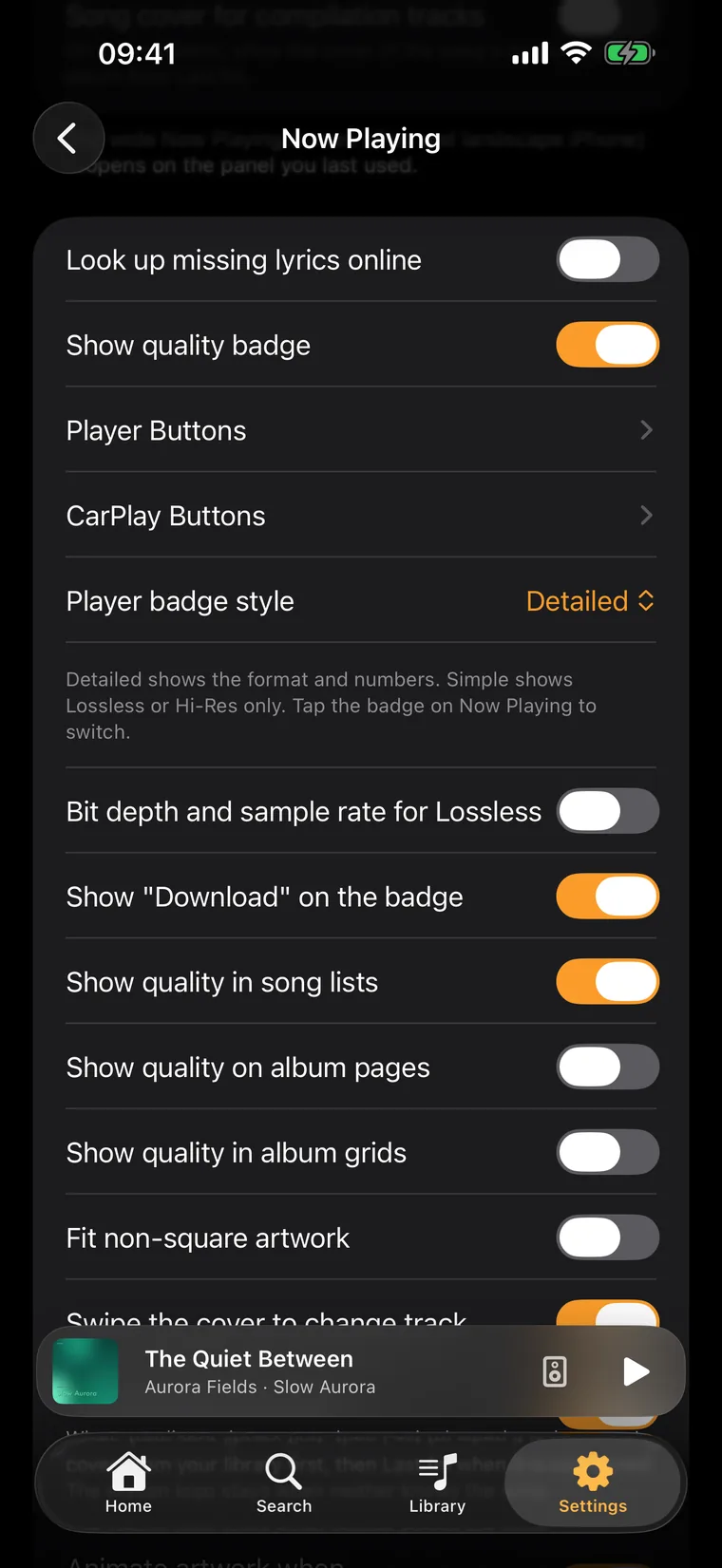
The highlighted row is Bit depth and sample rate for Lossless.
Screenshot from iPhone.
What it does
Hi-Res files always show their numbers. With this on, CD-quality lossless files show them too, like 16/44.1.
How to change it
- Open Settings.
- Tap Appearance & Language.
- Tap Now Playing.
- Find Bit depth and sample rate for Lossless and change it.
Checked against the app on 21 November 2026.