Remote streaming quality
A lighter quality for streaming from your server over the internet, so songs start faster.
WhereSettings›Playback & Audio›Quality & Streaming›Remote streaming quality
iPhoneiPadMacApple TVNot on Apple WatchDefault: Match Wi-Fi/cellular
Where it is
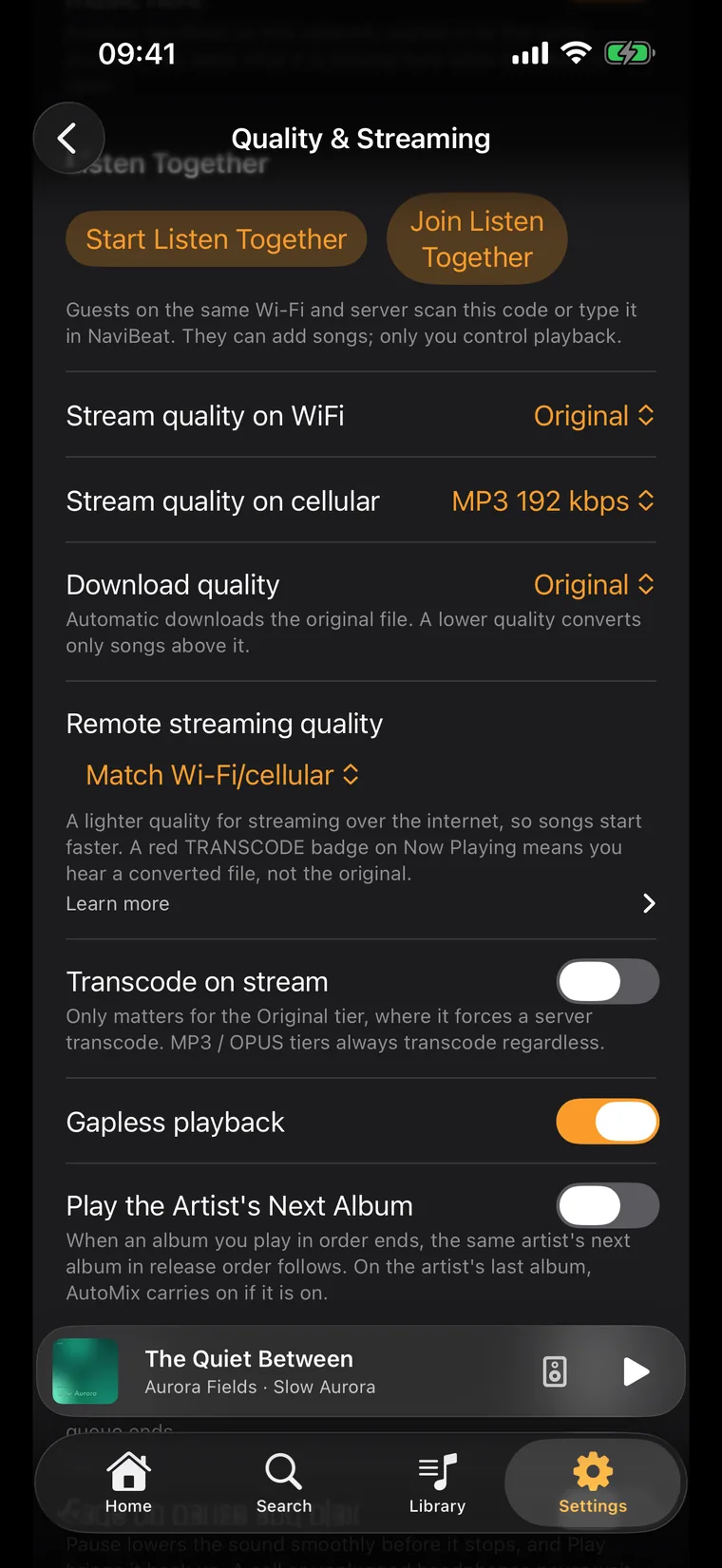
The highlighted row is Remote streaming quality.
Screenshot from iPhone.
What it does
When NaviBeat reaches your server from outside your home network, it can use this quality instead of the Wi-Fi or cellular one. Match Wi-Fi/cellular keeps your normal choice.
With a converting tier, the first song you start waits briefly while the server converts it. Every song after that starts at once.
How to change it
- Open Settings.
- Tap Playback & Audio.
- Tap Quality & Streaming.
- Find Remote streaming quality and change it.
Good to know
- A red TRANSCODE badge on Now Playing means the server converts the file as it streams. The orange badge is the untouched source. A downloaded song says DOWNLOAD.
Checked against the app on 21 November 2026.