Show quality badge
Shows the format and quality of the playing song on Now Playing, like HI-RES 24/96.
WhereSettings›Appearance & Language›Now Playing›Show quality badge
iPhoneiPadMacNot on Apple TVNot on Apple WatchDefault: On
Where it is
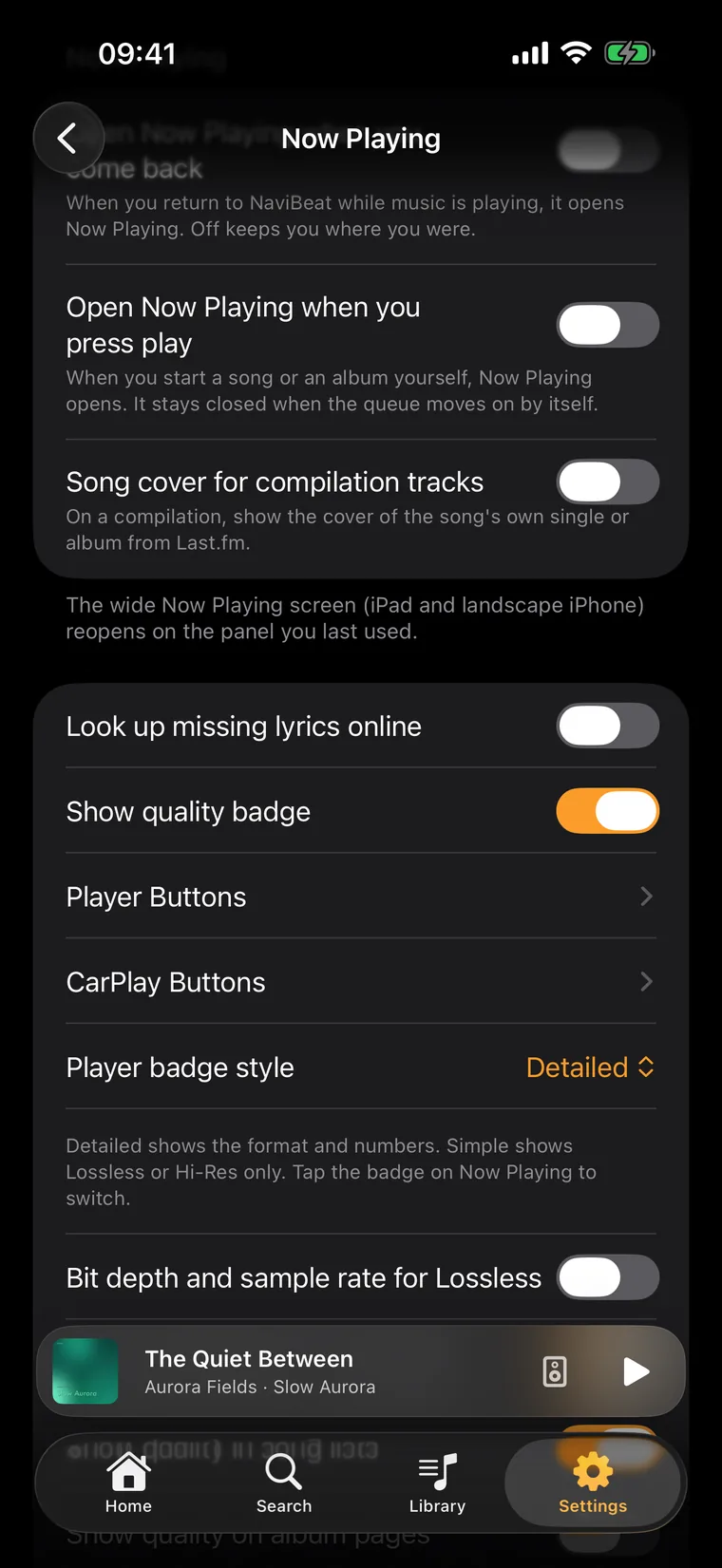
The highlighted row is Show quality badge.
Screenshot from iPhone.
What it does
The badge tells you what you hear: the original file, a converted stream (TRANSCODE) or a download (DOWNLOAD). Tap it on Now Playing to switch between Detailed and Simple.
How to change it
- Open Settings.
- Tap Appearance & Language.
- Tap Now Playing.
- Find Show quality badge and change it.
Checked against the app on 21 November 2026.