Continue on This Device card
Shows a card on Home when another of your devices is playing, so you can pick up from the same second.
WhereSettings›Playback & Audio›Quality & Streaming›Continue on This Device card
iPhoneiPadMacApple TVNot on Apple WatchDefault: On
Where it is
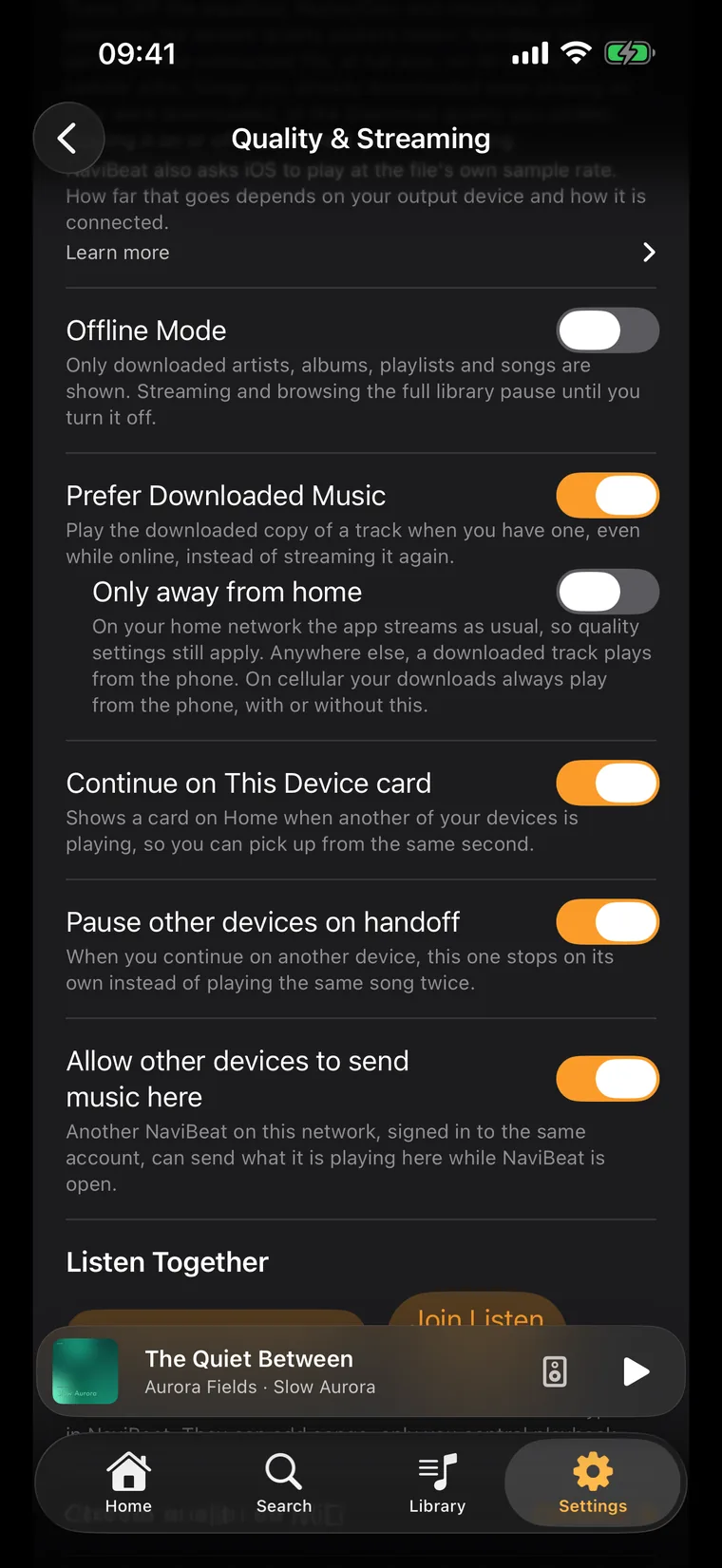
The highlighted row is Continue on This Device card.
Screenshot from iPhone.
What it does
When NaviBeat plays on another of your devices, this device shows a card on Home with that song. Tap it and the music continues here from the same second.
How to change it
- Open Settings.
- Tap Playback & Audio.
- Tap Quality & Streaming.
- Find Continue on This Device card and change it.
Checked against the app on 21 November 2026.